
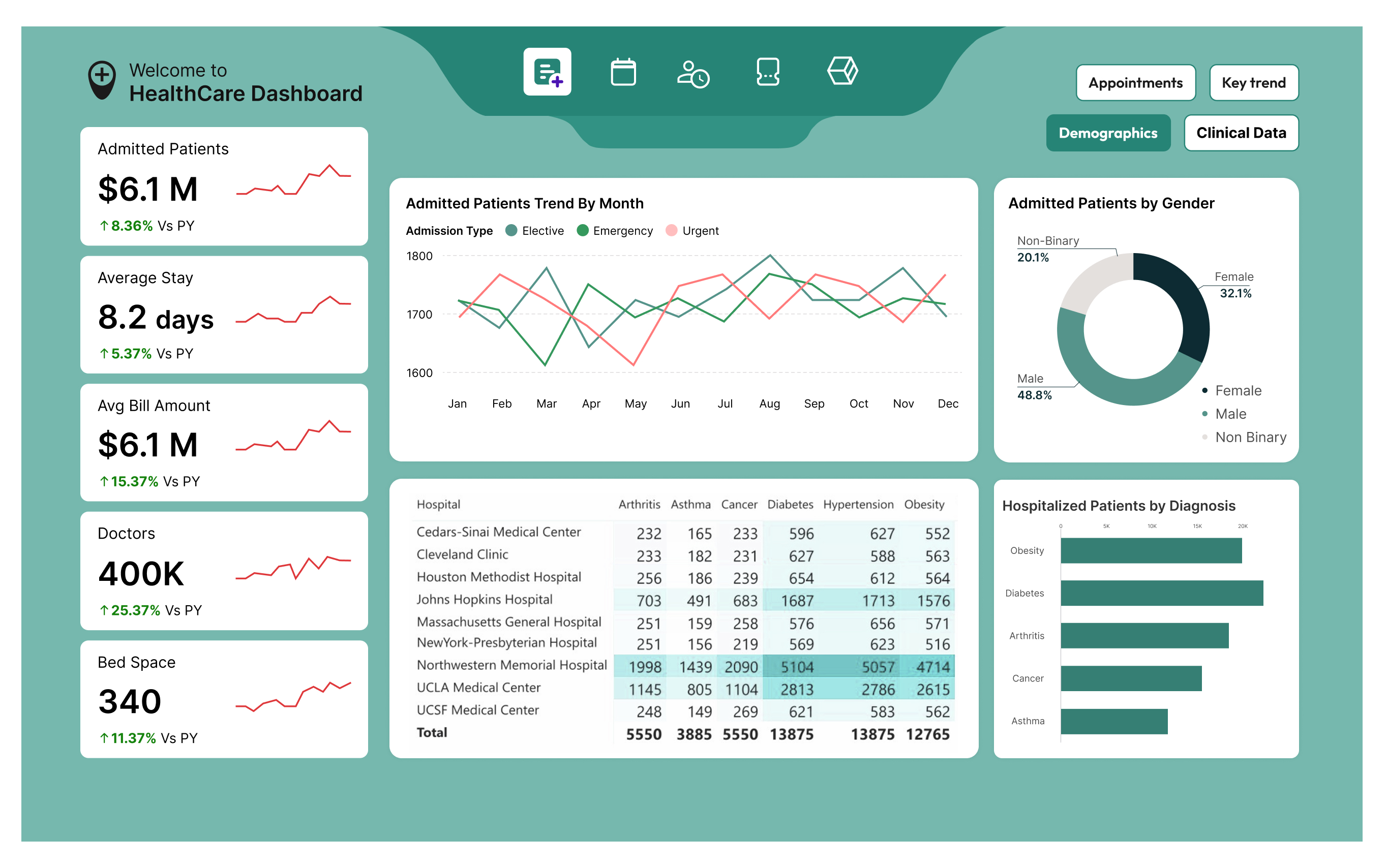
5 Ways to Pivot Data More Effectively in Power BI: Supercharge Your Data Analysis
Hey there, Power BI lovers! Pivoting data is a key skill for analyzing and presenting data in a way that uncovers valuable insights from raw numbers. In Power BI, pivoting goes beyond just using Pivot Tables like in Excel, you can do it much more powerfully with the right tools and features. Today, I’m sharing 5 practical ways to pivot data more effectively in Power BI, making your reports sharper and more professional. Let’s get started!
1. Use DAX to Create Flexible Pivot Measures
Instead of relying solely on drag-and-drop to pivot your data, you can use DAX to build flexible measures that let you pivot data the way you want. For example, instead of just showing total sales by month, you can create measures like Prev Sales MTD (last month’s sales) or Average Sales (average sales), which you’ve asked about before.
How to Do It:
- Create a measure like:
Sales by Category =
CALCULATE(
SUM('Sales'[Amount]),
ALLEXCEPT('Sales', 'Sales'[Category])
)
- This measure lets you pivot data to show sales by category without being affected by other filters. You can then use it in visuals like a Matrix to pivot data effortlessly.
- Why It Helps: It’s more flexible and reusable across multiple visuals, saving you time.
2. Leverage the Matrix Visual Instead of a Table
The Matrix Visual in Power BI is a powerful tool for pivoting data, allowing you to display data in rows and columns like a Pivot Table in Excel, but with extra features.
How to Do It:
- Drag a Matrix Visual onto your canvas.
- Add fields like Category to Rows, Month-Year to Columns, and Sales to Values.
- Turn on “Show on rows” in the Format pane to pivot data the way you need.
- Why It Helps: The Matrix lets you drill down into data (e.g., from year to month) without creating multiple visuals. This reduces cognitive load, as I mentioned in my “Top 5 Design Secrets for Power BI Reports” blog.
3. Use Power Query to Pivot Data Before Loading It into Your Model
Sometimes, your data isn’t in the right format for analysis. Instead of pivoting in a visual, you can use Power Query to pivot data before it even reaches your model.
How to Do It:
- Go to Power Query Editor (Transform Data).
- Select the column you want to pivot (e.g., a Product column with Sales values).
- Go to the Home tab > Pivot Column, choose the Sales column, and pivot by Product.
- Why It Helps: Your data is pre-formatted for analysis, making your model lighter and your visuals faster to load, a tip I shared in my “6 Must-Know Tips for New Power BI Developers” about avoiding messy data models.
4. Integrate Flexa Tables for Custom Data Pivoting
Flexa Tables, which you’ve mentioned before, is a custom visual in Power BI that lets you pivot data flexibly and create custom tables right within Power BI, just like in Excel.
How to Do It:
- Install Flexa Tables from Microsoft AppSource (make sure to check your license key).
- Add Flexa Tables to your report, then drag your data fields into the visual.
- Use Flexa Tables’ features to pivot, sort, and compare data (e.g., comparing Sales MTD and Prev Sales MTD).
- Why It Helps: Flexa Tables lets you build complex tables and perform variance comparisons quickly, making data analysis easier for users.
5. Add Slicers to Let Users Pivot Data Themselves
One of the best ways to pivot data effectively is to let users do it themselves based on their needs, without you having to create tons of visuals. Slicers in Power BI are perfect for this.
How to Do It:
- Add a Slicer to your report and choose fields like Year, Category, or Region.
- Pair the Slicer with a Matrix Visual or other visuals so users can filter and pivot data on their own.
- Place the Slicer in an easy-to-spot location (8 Simple Tips to Create Stunning Dashboards).
- Why It Helps: Users can explore data themselves without you needing to create dozens of visuals, reducing the need for bookmarks.
Why Effective Data Pivoting Matters
Pivoting data effectively in Power BI doesn’t just save you time, it makes your reports easier to understand and more professional. When data is pivoted well, users can quickly find insights without feeling overwhelmed or frustrated, something I highlighted in my “7 Fastest Ways to Kill Power BI Report Adoption” blog. Try these 5 methods, and you’ll see the difference right away!
Your Turn to Try
Which of these 5 methods do you like the most? Do you have your own tricks for pivoting data in Power BI? Let me know in the comments, I’d love to hear from you! For more Power BI tips, check out my other blogs like “Top 5 Design Secrets for Power BI Reports” or “6 Must-Know Tips for New Power BI Developers.” Thanks for reading, and happy pivoting!


