
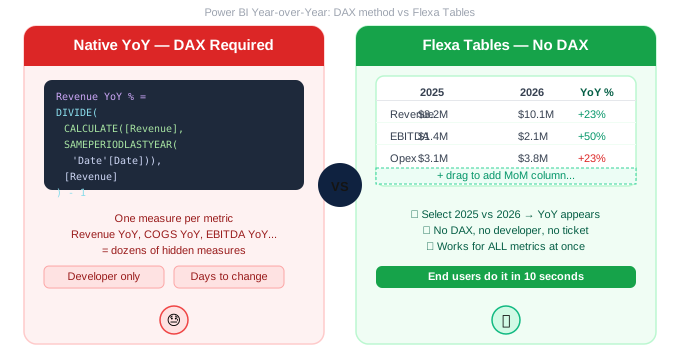
Power BI Year-over-Year (YoY) Comparison Without DAX
Year-over-Year comparison is one of the most requested additions to any Power BI report. It's also one of the most frustrating — because natively, every metric needs its own DAX measure. This guide shows how to get YoY without writing SAMEPERIODLASTYEAR even once.
In this article
1. What Is Year-over-Year Comparison in Power BI?
Year-over-Year (YoY) variance compares the same metric across two consecutive years — for example, Revenue in 2026 vs Revenue in 2025. It's the standard comparison for strategic reviews, board packs, and annual financial reporting because it removes seasonality and shows true underlying growth.
📊
Absolute YoY
2026 Revenue − 2025 Revenue = $1.9M
%
YoY %
($10.1M − $8.2M) ÷ $8.2M = +23%
📅
When to use
Board packs, annual reviews, strategic planning
2. The Native DAX Method (SAMEPERIODLASTYEAR)
In native Power BI, YoY requires a DAX measure for every metric you want to compare:
Revenue YoY %=
DIVIDE(
CALCULATE([Revenue],
SAMEPERIODLASTYEAR('Date'[Date])),
[Revenue]
) - 1
This works — but it's one measure for one metric. A typical board pack needs Revenue YoY, Gross Profit YoY, EBITDA YoY, Opex YoY, and Net Income YoY. That's 5 measures minimum, and every new metric requires a developer to write, test, and publish a new one.
Every time a stakeholder asks "can you add YoY for that metric?" — it's a developer ticket. For a finance team that prepares monthly reports, this creates a permanent bottleneck that grows as the report evolves.
3. How to Do YoY Without DAX
Flexa Tables is a Microsoft-certified Power BI custom visual on AppSource with built-in YoY comparison. End users select the two years to compare in the published report — the YoY column (absolute and %) appears instantly. No DAX, no developer, no republishing.
Native Power BI YoY
- Write SAMEPERIODLASTYEAR measure per metric
- Add measure to Matrix visual
- Republish report
- ⏱ 1–3 days per metric
Flexa Tables YoY
- Open published report in browser
- Select "2025" and "2026" periods
- YoY column appears for ALL metrics
- ⚡ 10 seconds, self-service
One Flexa Tables visual handles YoY for every measure in your report simultaneously — Revenue, COGS, EBITDA, Opex — all in one drag-and-drop action. No DAX measure per metric.
4. Real-World Use Cases
📋
Board Pack Preparation
Finance team adds 2025 vs 2026 YoY for all P&L line items before the board meeting — in 2 minutes, self-service, no IT request.
📈
Sales Annual Review
Sales directors compare this year vs last year by region, product, and rep — pivoting and restructuring the view for different audiences without IT.
Add YoY to your Power BI reports — no DAX needed
Free trial on Microsoft AppSource. Setup in under 5 minutes.
Get Free Trial on AppSource →Learn more: Variance Analysis in Power BI →
5. Fiscal Years and Custom Calendars
YoY analysis becomes significantly more complex when companies use non-calendar fiscal years — April–March, July–June, or October–September. SAMEPERIODLASTYEAR assumes a January–December calendar. For fiscal year YoY, you need a custom date table with a fiscal year flag and DAX that explicitly maps fiscal periods — a common source of incorrect YoY numbers that takes hours to debug.
⚠️ Common YoY mistake with SAMEPERIODLASTYEAR
If your fiscal year ends June 30, SAMEPERIODLASTYEAR('Date'[Date]) will return the wrong period for months after June unless your date table is explicitly configured with fiscal year columns. Flexa Tables avoids this entirely — users select any two periods manually, so fiscal year YoY works without any date table customization.
6. YoY in a Full Variance Reporting Stack
Most finance teams need more than just YoY. Board packs need YoY for annual context. Monthly P&L reviews need MoM for recent trends. Operations dashboards need DoD for real-time monitoring. Building native DAX for all three means maintaining 20–30 measures — all date-table dependent, all breaking when the model changes. Flexa Tables includes all three as built-in options with zero DAX measures required.
📊 Variance Analysis in Power BI: DoD, MoM, YoY Without DAX
Complete guide covering all three variance types in one place
📊 Power BI Budget vs Actual: compare actuals against budget without DAX
→ Read: /blogs/power-bi-budget-vs-actual-report-how-finance-teams-do-it-without-it-2026
FAQ
How do I do Year-over-Year in Power BI without SAMEPERIODLASTYEAR?
Install Flexa Tables from AppSource. Once published, end users select two year periods and a YoY variance column appears automatically for all metrics — no DAX, no developer, no republishing.
What is SAMEPERIODLASTYEAR in Power BI?
SAMEPERIODLASTYEAR is a Power BI DAX time intelligence function that returns the same period from the previous year. It's used inside CALCULATE to create YoY comparison measures. It requires a properly configured Date table marked as a Date table in your data model.
Can end users add YoY columns in a published Power BI report?
Not with the native Matrix visual — YoY requires a developer to write DAX and republish. With Flexa Tables, yes — end users select their comparison years directly in the Power BI Service browser and the YoY column appears instantly.
Flexa Intel Team
Power BI Custom Visuals — flexaintel.com
We build Microsoft-certified Power BI visuals for analysts and finance teams. Flexa Tables is available on Microsoft AppSource with a 5-star rating.


