
Power BI Budget vs Actual Report: How Finance Teams Do It Without IT (2026)
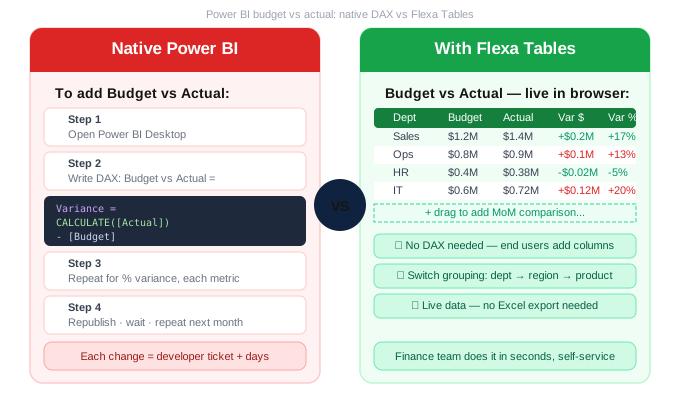
Every month, finance teams across the world open a Power BI report, realize the budget vs actual comparison is missing a column, and send a message to IT. A ticket gets filed. A developer opens Power BI Desktop. Two days later, the layout is updated. This guide explains how to break that cycle entirely.
In this article
1. What Is a Budget vs Actual Report in Power BI?
A budget vs actual (BvA) report compares planned financial targets against real performance data. It's one of the most fundamental tools in FP&A — giving leadership a clear view of where the business is tracking ahead, behind, or on plan.
A typical BvA report shows at minimum:
💰
Budget
Planned target
📊
Actual
Real performance
±
Variance $
Absolute diff
%
Variance %
Percentage diff
In Excel, building this takes about 10 minutes — you connect budget and actual data, write a few formulas, and format the table. In Power BI, the same report requires DAX measures, a data model that correctly relates budget and actual tables, and a developer to maintain it whenever the structure needs to change.
2. The Native DAX Approach and Why It Creates IT Dependency
Building a budget vs actual report natively in Power BI requires a developer to write and maintain multiple DAX measures. A basic setup looks like this:
Budget Amount= SUM(Budget[Amount])
Actual Amount= SUM(Actuals[Amount])
Variance $= [Actual Amount] - [Budget Amount]
Variance %= DIVIDE([Variance $], [Budget Amount])
That's the minimum — four measures. A real FP&A report typically needs many more: YTD budget, YTD actual, YTD variance, prior year comparison, forecast vs budget, and different versions for each department. Easily 15–25 measures for a single report.
The bigger problem isn't writing the measures — it's what happens when the CFO opens the report and asks:
- "Can you show this grouped by cost center instead of department?"
- "Add a column showing last month's variance too."
- "Can I see this by product line instead?"
Each of these requests means going back to Power BI Desktop, modifying the report, writing new measures if needed, and republishing. That's a helpdesk ticket, a developer's afternoon, and a finance team waiting.
A finance team that needs layout changes twice a month — 24 requests per year — is burning developer time on work that should take the analyst 30 seconds. Multiply that across every finance team in the organization and the cost is significant.
3. What Finance Teams Actually Need from a BvA Report
Based on common FP&A workflows, here's what finance teams actually need — not what native Power BI offers by default:
| Finance team need | Native Power BI | Flexa Tables |
|---|---|---|
| Budget vs Actual columns side by side | ⚠️ Needs DAX measures | ✅ Built-in |
| Variance $ and % columns | ⚠️ Needs DAX measures | ✅ Drag to add |
| Group by dept / cost center / product | ❌ Fixed after publish | ✅ End-user changes it |
| Add MoM comparison without IT | ❌ New DAX + republish | ✅ 2 clicks |
| Live data — no Excel export | ✅ Yes | ✅ Yes |
| Self-service — no IT request | ❌ Always needs developer | ✅ Fully self-service |
4. How to Build Budget vs Actual Without IT Involvement
Flexa Tables is a Microsoft-certified Power BI custom visual that removes the IT dependency from budget vs actual reporting. Once installed and configured by a developer (once, upfront), finance teams can:
- Add or remove Budget, Actual, Variance $ and Variance % columns themselves — via drag-and-drop in the published report
- Switch groupings on the fly — from department to cost center to product line, without any code
- Add MoM or YoY columns to see how variance trended over time — no DAX required
- All while connected to live data — no Excel, no manual refresh, no version management
The data model requirement
For budget vs actual to work correctly in any Power BI visual, your data model needs a Budget table and an Actuals table both connected to a shared Date table and Dimension table (e.g. Department, Cost Center). This is standard FP&A model design — Flexa Tables works with whatever model you already have, no restructuring required.
The BI developer configures the initial Flexa Tables visual with Budget, Actual, and Variance fields. After publishing, the finance team handles all layout changes themselves — switching groupings, adding columns, creating different views for different stakeholders — without any developer involvement.
5. Step-by-Step Setup Guide
Here's how to set up a self-service budget vs actual report in Power BI using Flexa Tables:
Prepare your data model
Ensure your model has a Budget table and Actuals table both linked to a shared Date table and at least one dimension (Department, Cost Center, Product Line). This is standard — no special setup required for Flexa Tables.
Install Flexa Tables from AppSource
In Power BI Desktop: Insert → More Visuals → AppSource → search "Flexa Tables". Add to your report. Free trial, no credit card required.
Configure the initial BvA layout
Drag your dimension (e.g. Department) into Rows. Add Budget Amount and Actual Amount to Values. Set up a default time period column. This becomes the baseline — finance users take it from here.
Publish to Power BI Service
Publish the report as usual. Once live, finance team members can immediately start customising — adding variance columns, switching groupings, and creating their own views. No Desktop access, no developer needed.
Finance team runs it themselves
For each reporting cycle, the finance team opens the report, adjusts groupings and columns as needed, and exports or shares directly from the browser. No IT tickets, no waiting, no version mismatches.
Monthly reporting cycle shrinks from "file ticket → wait 2 days → get updated report" to "open browser → adjust view → done in 3 minutes." The developer's time is freed up for higher-value work.
6. Real-World Use Cases
🏦
FP&A — P&L reporting
Finance team compares monthly P&L actual vs budget by business unit. Switches grouping between division, department, and GL account for different audiences — CFO, department heads, auditors — without rebuilding the report.
🏭
Manufacturing — OPEX tracking
Plant controllers compare operational expenditure against budget by cost center and production line. Add MoM variance column during month-end close to spot unusual spending patterns without IT help.
🛒
Retail — store performance
Regional managers compare budget vs actual sales by store, region, and product category. Each manager restructures the view for their own territory without requiring a customised report.
⚡
Energy — project cost control
Project finance teams track capex and opex budget vs actual by project, site, and month. Pivot the view instantly by contractor or workstream for different stakeholder meetings.
Build your BvA report without IT — start today
Install Flexa Tables from Microsoft AppSource. Free trial, set up in under 5 minutes, no credit card needed.
Get Free Trial on AppSource →Also read: Power BI Variance Analysis Without DAX — Complete Guide
📊 Variance Analysis in Power BI: DoD, MoM, YoY Without DAX
Add all variance types — including Budget vs Actual — without DAX
📊 Power BI P&L Report: Build a fully self-service P&L for finance teams
→ Read: /blogs/power-bi-pl-report-how-to-make-it-fully-selfservice-for-finance-teams-2026
📊 Power BI Pivot Table: Add drag-and-drop pivoting without DAX
FAQ
How do I create a budget vs actual report in Power BI?
You need a Budget table and an Actuals table in your data model, both linked to a shared Date and dimension table. Natively, you then write DAX measures for Budget, Actual, Variance $, and Variance %. With Flexa Tables, you configure the visual once and end users can add or remove variance columns themselves in the published report — no DAX required.
Can I do budget vs actual in Power BI without writing DAX?
Not with the native Matrix visual — budget vs actual comparisons require DAX measures natively. However, Flexa Tables adds built-in variance column functionality that works without any DAX. End users select their comparison columns and the variance appears automatically.
Can finance teams update the report layout without contacting IT?
With native Power BI, no — layout changes require a developer to open Power BI Desktop, make changes, and republish. With Flexa Tables, yes — end users can drag fields, switch groupings, add variance columns, and create different views directly in the Power BI Service browser without any IT involvement.
Does Flexa Tables work with DirectQuery and live connections?
Yes. Flexa Tables works with Import, DirectQuery, and composite models. It uses your existing data model and measures — no changes to your data source or connection type required.
How much does Flexa Tables cost for a finance team?
The Single License is $7/month per user — both report builders and viewers each need a key. The Enterprise License covers all viewers without individual keys, with only developers paying. For a finance team of 10 users on Single License, that's $70/month. Contact [email support] for enterprise pricing.
Flexa Intel Team
Power BI Custom Visuals — flexaintel.com
We build Microsoft-certified Power BI visuals that close the gap between what Power BI does natively and what analysts and finance teams actually need. Flexa Tables is available on Microsoft AppSource with a 5-star rating.


