
Power bi waterfall chart variance analysis guide
Direct Answer
To build a variance waterfall chart in Power BI, create a DAX measure for the variance (Actuals − Budget), add it to the native Waterfall visual's Y-axis, and use your category dimension on the X-axis. The native waterfall handles increases (green) and decreases (red) automatically. For multi-baseline variance (Actual vs Budget AND Actual vs Prior Year in one view), the native visual requires separate charts — custom visuals like Zebra BI or a table-based approach with Flexa Tables handles both in a single visual.
What a Variance Waterfall Chart Actually Shows
A standard waterfall chart starts at one value, walks through incremental changes, and ends at another value. A variance waterfall is a specific use case: it starts at zero, shows positive and negative contributions from each category or period, and ends at a total variance.
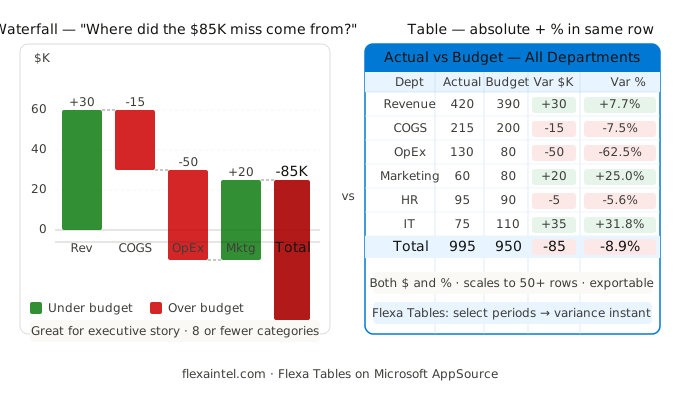
It answers a specific question: "We missed our budget by $85K — which departments were responsible and by how much?"
This is different from a time-series waterfall (which shows month-by-month movement of a single metric). Make sure you know which type you need before building — the data structure required is different for each.
Two Types of Variance Waterfall — Know the Difference
Type 1 — Category variance bridge
Shows how each category or department contributed to the total gap between Actual and Budget. Starts at Budget total, walks through each category's variance, ends at Actual total.
Use case: "Which departments drove the $85K budget miss?"
Type 2 — Period-over-period bridge
Shows how a metric moved over time — month by month or quarter by quarter. Starts at Jan value, walks through each month's increase/decrease, ends at Dec value.
Use case: "How did Revenue move from Q1 to Q4?"
Building a Category Variance Bridge (Step by Step)
This is the most common Finance use case — showing which departments or P&L lines are over/under budget.
Step 1: Create the variance measure
Budget Variance =
VAR _actual = CALCULATE(
    SUM('Financials'[Amount]),
    'Financials'[Scenario] = "Actual"
)
VAR _budget = CALCULATE(
    SUM('Financials'[Amount]),
    'Financials'[Scenario] = "Budget"
)
RETURN
    IF(ISBLANK(_budget), BLANK(), _actual - _budget)
Step 2: Configure the Waterfall visual
- Y-axis: [Budget Variance] measure
- Category: Department or P&L Account
- Breakdown: Leave empty for a simple variance bridge
Power BI automatically colors positive variances green and negative red. The final bar is auto-calculated as the sum total.
Step 3: Format for Finance readability
- Set Sentiment in Format pane: for revenue/profit, positive = good (green). For cost/expense accounts, positive variance (over budget) = bad — set Sentiment to "Low is good" to flip the colors.
- Enable Data labels — show the absolute variance value on each bar
- Sort categories by variance magnitude (largest impact first) for executive presentations
Building a Period-over-Period Bridge
For a time-series waterfall (Jan through Dec showing cumulative movement), your measure needs to return the incremental change for each period — not the cumulative total.
Monthly Change =
VAR _curr = [Total Revenue]
VAR _prev = CALCULATE(
    [Total Revenue],
    DATEADD('Date'[Date], -1, MONTH)
)
RETURN
    IF(ISBLANK(_prev), [Total Revenue], _curr - _prev)
The first period returns the full opening value (no prior month exists), and each subsequent bar shows only the incremental change. Power BI stacks these correctly in the waterfall visual.
The Native Waterfall Visual: Three Limitations to Know
1. One baseline only
The native visual compares one measure against zero — you cannot show Actual vs Budget AND Actual vs Prior Year in the same chart. Each baseline requires a separate visual, which multiplies your canvas space and reduces clarity for executives who want to see all comparisons at once.
2. No relative variance (% change)
The native waterfall shows absolute values only. To show percentage variance alongside absolute, you need a separate table or card visual. This splits the story across two visuals and forces the reader to mentally connect them.
3. Sentiment logic is global, not per-category
Setting "Low is good" applies to the entire visual. A P&L waterfall that mixes revenue lines (where positive = good) and cost lines (where positive = bad) cannot color each category correctly with the native visual alone. Revenue variance green and expense variance red — not possible natively.
When a Table Visual Beats a Waterfall for Variance
Waterfall charts are visually compelling but have a practical ceiling in Finance reporting. A table or matrix visual is often better when:
- You need both absolute and % variance in the same row — waterfall shows one; a table shows both columns side by side
- You have more than 8–10 categories — waterfall bars become too narrow to read at scale; a table handles 50+ rows without losing clarity
- You need multi-baseline comparison — Actual vs Budget AND Actual vs Prior Year in one view
- Finance users need to drill into specific rows and take the data to Excel for further analysis
For table-based variance reporting — with color-coded variance columns, period selection, and no DAX overhead — see Variance Analysis in Power BI Without DAX and Power BI Pivot Table for the full approach.
Waterfall vs Table: Which to Use
| Requirement | Waterfall chart | Table / Matrix |
|---|---|---|
| Visual story of how variance built up | ✓ Ideal | ⚠ Less visual |
| Executive presentation, few categories | ✓ Ideal | ⚠ Less impactful |
| Absolute + % variance in same row | ✕ Not native | ✓ Easy |
| 10+ categories / P&L lines | ✕ Too narrow | ✓ Scales well |
| Actual vs Budget AND Actual vs PY | ✕ Needs 2 charts | ✓ Same view |
| Mixed sentiment (revenue + cost) | ✕ Global sentiment only | ✓ Per-row color logic |
| Finance self-service (no DAX) | ✕ Requires DAX | ✓ Flexa Tables |
Table-Based Variance Without the DAX Overhead
Flexa Tables installs from AppSource in under 5 minutes. Free trial, no credit card required.
Get Free Trial on AppSource →Frequently Asked Questions
How do I create a variance waterfall chart in Power BI?
Create a DAX measure for the variance: Budget Variance = [Actuals] - [Budget]. Add the native Waterfall visual from the visualization pane, place your variance measure on the Y-axis, and your category dimension (Department, Account, etc.) on the X-axis. Power BI automatically colors positive bars green and negative bars red, with the final bar showing the total variance.
Can I show budget vs actuals AND prior year in the same Power BI waterfall chart?
Not with the native waterfall visual — it only supports one Y-axis measure, which means one comparison at a time. To show both comparisons, you need either two separate waterfall charts side by side, or a table/matrix visual with multiple variance columns. For a single visual that handles both, third-party custom visuals like Zebra BI are purpose-built for this, though they require additional licensing.
Why are my waterfall chart colors wrong in Power BI?
The native waterfall colors positive values green and negative values red by default, assuming "positive = good." For expense or cost accounts, being over budget (positive variance) is bad. Go to Format pane → Sentiment → set to "Low is good" to flip the coloring. Note: this setting applies globally — you cannot set different sentiment logic for individual categories within the same waterfall visual.
When should I use a waterfall chart vs a table for variance analysis in Power BI?
Use a waterfall chart for executive presentations with fewer than 10 categories where the visual story of "how did variance build up" matters. Use a table or matrix when you need absolute and percentage variance in the same row, when you have 10+ categories, or when Finance users need to drill into data and export. See the full comparison in Variance Analysis in Power BI Without DAX.
Can I add percentage labels to a Power BI waterfall chart?
The native waterfall visual only supports absolute value labels — there is no built-in option to display percentage labels on individual bars. To show both absolute and percentage variance, create a separate table visual beneath the waterfall, or use a tooltip that includes a percentage measure. Alternatively, a matrix visual with conditional formatting achieves the same Finance reporting goal with both columns visible simultaneously.
Related Reading
→ Variance Analysis in Power BI Without DAX
→ Budget vs Actuals in Power BI: The Data Model Problem Nobody Warns You About
→ Power BI Year Over Year (YoY) Calculation
→ Power BI Pivot Table: Add Excel-Style Pivoting Without DAX
Flexa Intel Team
Power BI Custom Visuals · flexaintel.com
We build Microsoft-certified Power BI visuals that close the gap between what Power BI does natively and what analysts and finance teams actually need. Flexa Tables is available on Microsoft AppSource.


