
Power BI P&L Report: How to Make It Fully Self-Service for Finance Teams (2026)
A P&L report built in Power BI looks great on day one. Then the CFO asks for a MoM variance column. The VP of Sales wants it grouped by division instead of department. The board needs a YoY comparison added before Friday. Each request goes to IT. Each one waits. Here's how to build a P&L that finance runs themselves.
In this article
1. What a P&L Report Needs in Power BI
A Profit & Loss (P&L) report — also called an Income Statement — is the most common financial report in any organization. It shows revenue, costs, and profitability across a specific period. In Power BI, a proper P&L typically needs:
📋
Hierarchical rows
Revenue → COGS → Gross Profit → Opex → EBITDA → Net Income
📅
Period columns
Months, quarters, or years side by side for trend visibility
±
Variance columns
MoM, YoY, Budget vs Actual comparisons for each line item
The challenge: building this structure natively in Power BI requires a solid data model, multiple DAX measures, and — critically — developer involvement every time the layout needs to change.
2. Why Native Power BI P&L Reports Create IT Bottlenecks
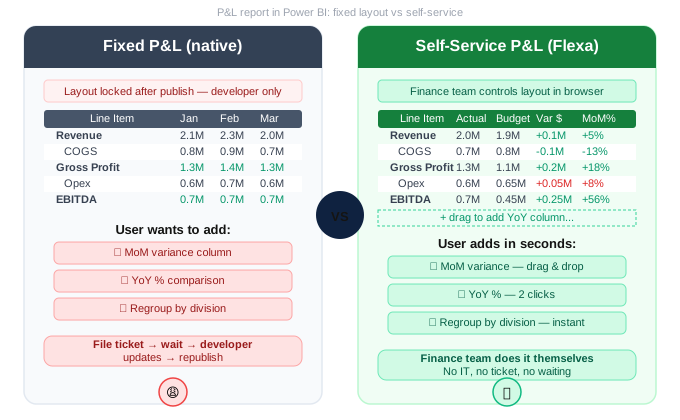
Most Power BI P&L reports are built with the Matrix visual. The developer carefully arranges line items in rows, periods in columns, and publishes a polished report. Finance teams love it — until the first change request comes in.
Here's what typically happens in a monthly reporting cycle:
📌 Finance team requests
- Add a MoM variance column to the P&L
- Show YoY comparison for the board pack
- Group by business unit instead of department
- Add budget variance for Q3 review
🔴 What happens next
- Request sent to BI developer
- Ticket queued behind other work
- Developer opens Desktop, makes changes, writes DAX
- Republish → 1–3 day turnaround
A finance team with 2 layout change requests per month generates 24 developer tickets per year — for changes that should take 30 seconds. Multiply across 5 finance teams and you have 120 unnecessary tickets annually. That's significant developer time spent on low-value work.
3. What "Self-Service P&L" Actually Means
A self-service P&L in Power BI means finance team members — not developers — can control the report layout after it's been published. Specifically:
| Finance team action | Native Matrix | Flexa Tables |
|---|---|---|
| Add MoM variance column | ❌ Needs DAX + republish | ✅ Drag-and-drop |
| Add YoY % comparison | ❌ New DAX measure | ✅ 2 clicks |
| Switch grouping (dept → division) | ❌ Fixed after publish | ✅ User drags field |
| Create view for different stakeholders | ❌ Separate report per view | ✅ Multiple views, one report |
| Add budget variance on the fly | ❌ Developer ticket | ✅ Built-in, instant |
| All of the above — no IT request | ❌ Always needs developer | ✅ Fully self-service |
4. How to Build a Self-Service P&L in Power BI
Flexa Tables is a Microsoft-certified Power BI custom visual on AppSource that gives finance teams control of the P&L layout after publishing — without any developer involvement.
The core difference: instead of a fixed hierarchy baked in at design time, Flexa Tables lets end users configure their own view dynamically. The developer sets up a well-structured baseline; the finance team takes it from there.
What finance users can do in the published P&L
- Add DoD, MoM, or YoY variance columns — select the two periods to compare, the column appears instantly. No DAX, no developer.
- Switch row grouping — from department to division to GL account, depending on the audience
- Add or remove line items from the view — show only revenue and gross profit for an exec summary, or expand to all line items for a detailed review
- Create different views for different audiences — board pack view vs detailed FP&A view vs department head view, all from one report
- All with live data — changes reflect the latest numbers immediately, no export, no version risk
For a P&L to work correctly, your data model needs a Chart of Accounts table (with line items and hierarchy), a Fact table (Actuals and/or Budget), and a Date table. Flexa Tables works with any correctly structured model — no special changes needed.
5. Step-by-Step Setup Guide
Here's how to configure a self-service P&L report in Power BI using Flexa Tables:
Structure your Chart of Accounts
Ensure your Chart of Accounts table has a line item hierarchy (e.g. Category → Subcategory → GL Account) and a sort order column so the P&L rows appear in the right sequence (Revenue first, Net Income last). This structure is essential regardless of which visual you use.
Install Flexa Tables from AppSource
In Power BI Desktop: Insert → More Visuals → AppSource → search "Flexa Tables". Free trial, no credit card needed. Add to your report canvas.
Configure the default P&L layout
Drag your line item hierarchy into Rows. Add your Actuals measure to Values. Set the default time column (e.g. Month). Optionally add a Budget column as a second value. This becomes the starting point for all users — they adjust from here.
Publish to Power BI Service
Publish as normal. Once live, finance team members open the report in their browser and start customising — adding variance columns, switching groupings, and creating views for each stakeholder. No Desktop, no developer, no tickets.
Finance team owns the report from here
Each reporting cycle — month-end close, quarterly review, board pack — the finance team opens the browser, adjusts the layout for the audience, and works directly. The BI developer's role becomes maintaining the data model, not fielding layout change requests.
Finance teams prepare board packs, management accounts, and P&L reviews without a single IT request. Developers focus on data quality and model improvements — not layout tickets. Everyone works faster.
6. Who Benefits Most
📊
FP&A Teams
Prepare monthly management accounts and board packs without developer help. Quickly switch between summary view (for the CFO) and detailed view (for department heads) from the same report.
🏦
Group Finance / Consolidation
Pivot the consolidated P&L by entity, region, or segment on the fly. Add inter-company eliminations as a comparison column without rebuilding the report for each view.
📋
Finance Controllers
Month-end close review with variance analysis done in minutes. Compare actuals vs budget at cost center level, then switch to entity level for the consolidation pack — without IT involvement.
💼
BI Consultants
Deliver P&L reports to finance clients that they can actually maintain themselves. Reduce post-go-live change requests significantly by giving clients self-service control from day one.
Give your finance team a self-service P&L today
Install Flexa Tables from Microsoft AppSource. Free trial, no credit card, set up in under 5 minutes.
Get Free Trial on AppSource →Also read: Power BI Budget vs Actual Without IT — Finance Team Guide
📊 Variance Analysis in Power BI: DoD, MoM, YoY Without DAX
Full variance guide — the foundation of self-service P&L reporting
📊 Power BI Budget vs Actual: Compare actuals against budget without DAX
→ Read: /blogs/power-bi-budget-vs-actual-report-how-finance-teams-do-it-without-it-2026
📊 Power BI Pivot Table: Add drag-and-drop pivoting to your P&L
FAQ
How do I create a P&L report in Power BI?
You need a Chart of Accounts table with line item hierarchy, a Fact/Actuals table, and a Date table in your data model. Natively, use the Matrix visual to arrange line items in rows and periods in columns. For a self-service P&L where finance teams can adjust the layout themselves, use Flexa Tables from AppSource instead of the native Matrix visual.
Can finance teams edit the P&L layout in Power BI Service without Desktop?
Not with the native Matrix visual — its layout is fixed after publishing. With Flexa Tables, yes. Finance team members can add variance columns, switch groupings, and create different views directly in the browser — no Power BI Desktop, no developer, no republishing needed.
How do I add a MoM variance column to a P&L in Power BI?
Natively, you need a DAX measure using DATEADD or PREVIOUSMONTH. With Flexa Tables, end users add a MoM column directly in the published report — select the two months to compare and the variance column (absolute and %) appears automatically. No DAX required.
Does Flexa Tables support hierarchical P&L rows (Revenue → COGS → Gross Profit)?
Yes. Flexa Tables supports row hierarchies, which is essential for a proper P&L structure. You configure the hierarchy in your data model (using your Chart of Accounts sort order and parent-child structure), and Flexa Tables displays it correctly with expandable rows.
Can I use Flexa Tables for both P&L and budget vs actual in the same report?
Yes. A single Flexa Tables visual can show actuals, budget, and variance columns side by side in your P&L structure. Finance teams can add or remove the budget comparison column themselves — no developer needed to switch between an actuals-only view and a budget vs actual view.
Flexa Intel Team
Power BI Custom Visuals — flexaintel.com
We build Microsoft-certified Power BI visuals that close the gap between what Power BI does natively and what analysts and finance teams actually need. Flexa Tables is available on Microsoft AppSource with a 5-star rating.


