
Power BI Matrix vs Table
Direct Answer
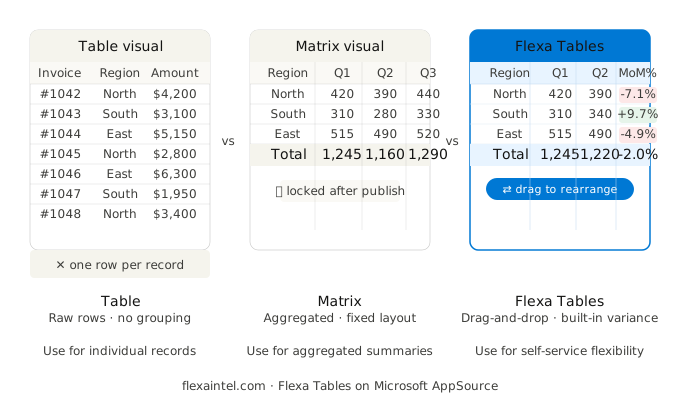
The Power BI Table visual displays flat, row-level data — one record per row, no grouping or hierarchy. The Power BI Matrix visual aggregates and groups data across rows, columns, and values — the closest native equivalent to an Excel pivot table. Use Table for transactional lists; use Matrix for summarized cross-tabular data. Neither allows end-users to restructure the layout after publishing — for that, you need a custom visual like Flexa Tables.
The Core Difference in One Sentence
A Table shows raw rows. A Matrix shows aggregated summaries across two axes. If you want to see every individual sales transaction, use Table. If you want to see total sales by region and month, use Matrix.
In practice, most reporting scenarios call for Matrix — because stakeholders almost never want to see raw rows. They want summarized, comparable data: revenue by department by quarter, headcount by team by month, margin by product by region.
Matrix vs Table: Full Feature Comparison
| Feature | Table Visual | Matrix Visual |
|---|---|---|
| Data structure | Flat rows (one record per row) | Aggregated (grouped by rows + columns) |
| Column axis (cross-tab) | ✕ Not available | ✓ Drag fields to column axis |
| Subtotals & grand totals | ✕ Not available | ✓ Row and column subtotals |
| Hierarchical drill-down | ✕ Not available | ✓ Expand/collapse row hierarchy |
| Conditional formatting | ✓ Background, font, data bars | ✓ Background, font, data bars |
| Show all data source columns | ✓ Easy | ⚠ Values only — no raw column passthrough |
| End-user restructures layout after publish | ✕ Fixed | ✕ Fixed |
| Built-in MoM / YoY variance | ✕ Requires DAX | ✕ Requires DAX |
When to Use the Table Visual
Use Table when end-users need to see and scroll through individual records — not summaries.
Good use cases for Table:
- Transaction logs (each row = one invoice, one order, one event)
- Customer lists with multiple attributes side by side
- Error or exception reports (each row = one flagged item)
- Drill-through detail pages — the destination after clicking into a Matrix
- Any scenario where aggregation would hide important information
Table is often underused as a drill-through target. Build your summary in Matrix, set up a drill-through page using Table to show the underlying transactions, and you get the best of both without sacrificing context.
When to Use the Matrix Visual
Use Matrix when the goal is summarized, cross-tabular data — the kind Finance and Operations teams look at in management reports.
Good use cases for Matrix:
- Revenue or cost broken down by region and month (rows = region, columns = month)
- Headcount by department and year
- P&L statements with row hierarchy (Revenue → Gross Profit → EBITDA)
- Sales performance by rep and product category
- Any scenario that maps to "rows × columns = value"
Matrix is Power BI's closest native equivalent to an Excel pivot table. But there is a critical limitation: once you publish the report, the layout is locked. End-users cannot swap rows and columns, add new fields, or restructure the view without developer access to Power BI Desktop. For a full breakdown, see Power BI Pivot Table: Add Excel-Style Pivoting Without DAX.
The Limitation Both Visuals Share
⚠ Neither Table nor Matrix allows end-users to modify the layout after the report is published. Any structural change — adding a column, swapping rows and columns, adding a variance metric — requires the developer to open Power BI Desktop, make the change, and republish.
This becomes a recurring bottleneck in most organizations. Finance teams ask for one more column. Operations needs the rows and columns swapped for a different stakeholder. A manager wants MoM variance added. Each request goes back to the developer queue.
The two most common workarounds — and their tradeoffs:
1. DAX measures for variance: Write separate measures for MoM%, YoY%, DoD variance. Works, but multiplies quickly. Five metrics × three period comparisons = fifteen measures to maintain, each one breaking if the date table structure changes. See the full problem in Variance Analysis in Power BI Without DAX.
2. Export to Excel: Users export the Matrix to Excel, do their analysis there, and share the file. Fast short-term fix, but defeats the purpose of live Power BI data — the Excel file is stale the moment it is created.
When Neither Native Visual Is Enough
If your reporting requirement is summarized data that end-users need to restructure themselves — with variance columns, ad hoc field swapping, and no DAX — neither Table nor Matrix solves the problem natively.
This is the gap Flexa Tables is built to fill. It is a Microsoft-certified custom visual on AppSource that adds:
- Drag-and-drop field restructuring in Power BI Service — after publish, no Desktop needed
- Built-in DoD / MoM / YoY variance — select two periods, variance column appears instantly
- Dynamic calculated columns without DAX
- Full column visibility — expose all fields from your data source, let users choose what to display
Installs from AppSource in under 5 minutes. No changes to your existing data model, DAX measures, or report structure required.
Quick Decision Guide
| Your requirement | Use this |
|---|---|
| Show individual transaction records | Table |
| Summarize data across rows and columns | Matrix |
| Drill-through detail page | Table |
| P&L or management report with hierarchy | Matrix |
| End-users restructure layout after publish | Flexa Tables |
| MoM / YoY variance without writing DAX | Flexa Tables |
| Replace Excel pivot table inside Power BI | Flexa Tables |
Add Real Pivot Flexibility to Power BI
Flexa Tables installs from AppSource in under 5 minutes. Free trial, no credit card required.
Get Free Trial on AppSource →Frequently Asked Questions
What is the difference between Table and Matrix in Power BI?
The Table visual displays flat, row-level data — one record per row with no aggregation or grouping. The Matrix visual aggregates data across rows and columns, supports hierarchies, subtotals, and drill-down. Matrix is used for summarized cross-tabular reporting; Table is used for transactional record display.
Is Power BI Matrix the same as a pivot table?
Not exactly. The Matrix visual resembles an Excel pivot table visually — both display aggregated data across rows and columns. The key difference is flexibility: Excel pivot tables allow drag-and-drop restructuring at any time. Power BI Matrix layouts are fixed after publishing. For true pivot table behavior inside Power BI, see Power BI Pivot Table: Add Excel-Style Pivoting Without DAX.
Can I add variance columns to a Power BI Matrix?
Yes, but it requires writing DAX measures — a separate measure for each metric and each comparison period (MoM, YoY, DoD). As the number of metrics grows, so does the maintenance overhead. For variance without DAX, see Variance Analysis in Power BI Without DAX.
When should I use Table instead of Matrix in Power BI?
Use Table when you need to display individual records — transaction logs, customer lists, exception reports, or drill-through detail pages. Use Matrix when you need summarized, aggregated data across two dimensions such as region × month or department × year.
Can end-users change a Matrix layout in Power BI Service?
No. Once published, the Matrix layout is fixed — end-users can filter, sort, and drill down, but cannot add fields, swap rows and columns, or restructure the view. Any layout change requires the developer to edit the report in Power BI Desktop and republish. Custom visuals like Flexa Tables solve this by enabling drag-and-drop restructuring directly in Power BI Service.
Flexa Intel Team
Power BI Custom Visuals · flexaintel.com
We build Microsoft-certified Power BI visuals that close the gap between what Power BI does natively and what analysts and finance teams actually need. Flexa Tables is available on Microsoft AppSource.


