
Power BI Conditional Formatting Variance Columns: Red Green
Red for negative variance, green for positive — it seems like it should be a checkbox. In Power BI, it's a DAX measure, a conditional formatting rule, and a surprise that every new metric breaks it. This guide shows how to get automatic red/green variance highlighting without any of that.
In this article
1. Why Variance Conditional Formatting Matters
In financial reporting, red/green variance highlighting is a basic readability requirement. Executives and finance teams scan large tables looking for outliers — conditional formatting makes the signal immediately visible without reading every number.
| Department | Actual | Budget | Var $ | Var % |
|---|---|---|---|---|
| Revenue | $2.4M | $2.1M | +$0.3M | +14% ▲ |
| Opex | $0.8M | $0.65M | +$0.15M | +23% ▼ |
| EBITDA | $0.8M | $0.45M | +$0.35M | +78% ▲ |
Note: for cost lines like Opex, a positive variance (over budget) is bad — red. For revenue lines, positive is good — green. Proper conditional formatting needs to know the direction of "good" for each metric. This is where it gets complex natively.
2. Native Power BI Approach (And Why It's Complex)
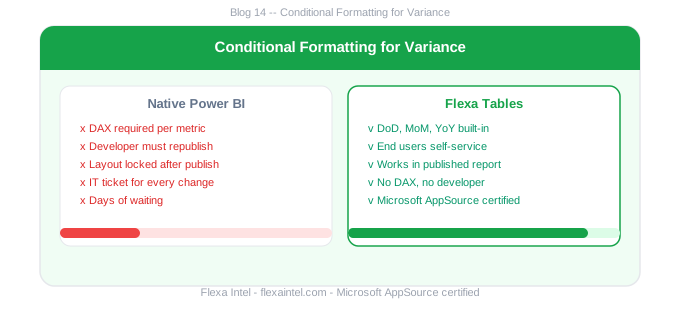
In Power BI's native conditional formatting for the Matrix visual, you set up color rules in the Format panel. To get red/green on a variance column, you typically need:
- A DAX measure that returns the color code based on the variance value (e.g. a measure returning "#DC2626" for negative)
- A conditional formatting rule applied to the variance column pointing to this color measure
- Separate rules for "good high" vs "good low" metrics (revenue vs cost)
Every new variance column needs its own conditional formatting rule. If an end user adds a new variance column (which they can't in native Matrix anyway), the formatting doesn't automatically apply. This creates inconsistent-looking reports over time.
3. Automatic Red/Green Without DAX
Flexa Tables applies automatic conditional formatting to all variance columns — positive values appear green, negative values appear red — without any DAX color measures or manual formatting rules. This formatting:
- Applies automatically when end users add DoD, MoM, or YoY columns
- Requires no DAX color measures — built into the visual behavior
- Consistent across all variance columns — no per-column setup needed
Automatic red/green variance — try free
No DAX color measures needed. Flexa Tables handles it automatically.
Get Free Trial on AppSource →How do I add red/green conditional formatting to variance columns in Power BI?
Natively, create a DAX measure that returns a color code based on the variance sign, then apply it as a conditional formatting rule on the Matrix visual column. With Flexa Tables, variance columns automatically show green for positive and red for negative values — no DAX color measure required.
Can I apply conditional formatting automatically when new variance columns are added?
Not in native Power BI Matrix — formatting rules are set per column at design time. With Flexa Tables, any variance column added by end users automatically inherits the red/green formatting behavior — consistent every time, no manual setup.
Flexa Intel Team
Power BI Custom Visuals — flexaintel.com
We build Microsoft-certified Power BI visuals for analysts and finance teams.
4. Handling Revenue vs Cost Direction
A key challenge in financial variance formatting: the direction of "good" differs by metric. Revenue over budget is positive (green). Cost over budget is negative (red). Native Power BI requires separate color rules per metric type — one set for revenue lines, another for cost lines. This doubles maintenance and causes formatting inconsistency when new metrics are added.
| Metric | Positive variance means | Native Power BI | Flexa Tables |
|---|---|---|---|
| Revenue | Good → 🟢 Green | Manual DAX color measure | Automatic |
| Opex / Cost | Bad → 🔴 Red | Separate inverted rule | Automatic |
| New metric | Depends on type | New rule required | Automatic on add |
5. Quick Comparison — Variance Formatting Approaches
- DAX color measure per variance column
- Manual conditional formatting rule per metric
- New columns don't inherit formatting
- Separate rules for revenue vs cost direction
- Breaks when new metrics are added
- Automatic red/green on all variance columns
- Zero DAX color measures needed
- All new columns inherit formatting automatically
- Consistent across DoD, MoM, and YoY columns
- Works immediately after publishing
📊 Full variance analysis guide — DoD, MoM, YoY without DAX
See how Flexa Tables handles all variance types with automatic formatting


