
How End Users Can Restructure Power BI Reports Without Desktop Access
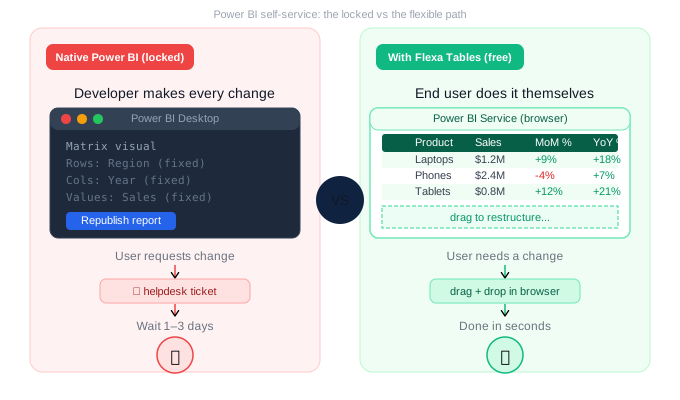
You published the Power BI report. Your users are happy — until someone asks: "Can you swap the rows and columns? And add a column showing last month's comparison?" In native Power BI, that means going back to Desktop. But it doesn't have to. Here's what actually works.
In this article
1. Why Power BI Report Layouts Are Locked After Publishing
When you build a report in Power BI Desktop, you define every visual's layout: which fields go in rows, which in columns, which measures appear as values. That configuration gets baked into the report file. When you publish to Power BI Service, that layout becomes read-only for everyone who views it.
This is by design — Power BI was built as a presentation and distribution tool. A report developer creates a polished, governed view of data. End users consume it. The assumption is that the developer knows what the users need.
In practice, that assumption breaks constantly.
A regional manager opens the published report and asks: "Can you show this by product line instead of by region?" A finance director says: "I need a Month-over-Month column added." Each of these requests requires a developer to open Power BI Desktop, make changes, and republish. That's a helpdesk ticket, a wait, and a workflow interruption — for changes that should take seconds.
2. The Built-In "Personalise Visuals" Feature — And Its Limits
Power BI does have a native feature designed for this: Personalise Visuals. When enabled by the report developer, it lets end users make limited changes to visuals in the Service — without touching Desktop.
Here's what it can and can't do:
What Personalise Visuals CAN do
- Change the chart type (bar to line, etc.)
- Add or remove fields from a visual
- Change aggregation (sum to average)
- Save a personalised view
What Personalise Visuals CANNOT do
- Swap rows and columns in a table/matrix
- Add variance columns (MoM, YoY)
- Create truly different views of the same data
- Restructure a pivot-style table layout
Personalise Visuals helps with chart-level tweaks. It doesn't solve the core problem: giving end users the ability to restructure tabular data like an Excel pivot table.
3. What End Users Actually Need vs What Native Power BI Offers
| What users ask for | Native Power BI | Flexa Tables |
|---|---|---|
| "Show by region, not product" | ❌ Needs Desktop republish | ✅ Drag in published report |
| "Add a MoM % column" | ❌ Needs new DAX measure | ✅ Built-in, 2 clicks |
| "Swap rows and columns" | ❌ Impossible after publish | ✅ Drag-and-drop |
| "Group by quarter, not month" | ⚠️ Only with drill hierarchy | ✅ On the fly |
| "Save my custom view" | ⚠️ Personalise Visuals only | ✅ Per-user views |
| "Do this without IT's help" | ❌ Always needs developer | ✅ Fully self-service |
4. How to Give End Users True Restructure Capability
Flexa Tables is a Microsoft-certified Power BI custom visual on AppSource that brings Excel-style pivot table flexibility into Power BI — after publishing, without Desktop, and without DAX.
The key architectural difference: instead of a fixed layout baked at design time, Flexa Tables renders the table layout dynamically based on what the end user configures. The developer sets a sensible default — and end users take it from there.
What end users can do themselves, live in the browser
- Drag dimensions into rows or columns — switch from "region in rows" to "product in rows" without any developer involvement
- Add or remove measures from the table on the fly — show revenue only, or add gross profit and margin side by side
- Add DoD, MoM, or YoY variance columns with a click — no DAX, no ticket, immediate result
- Apply conditional formatting to highlight variances — red for negative, green for positive, without developer setup
- All of this on live data — changes reflect immediately, no export, no data staleness
A finance analyst opens the report on Monday, adds a YoY column, groups by department instead of region, and has their board presentation ready in 3 minutes — without a single message to the BI team. The developer's job becomes setting up the model well once, not fielding layout change requests every week.
5. Setup Guide: 5 Steps, Under 5 Minutes
Here's exactly how to set this up for your team:
Install from AppSource
In Power BI Desktop: Insert → More Visuals → AppSource → search "Flexa Tables". Click Add. Free trial, no credit card needed.
Add to your report canvas
Drag the Flexa Tables visual onto your report page like any other visual. It appears as an empty container ready to be configured.
Configure your default fields
In the Fields pane, drag your dimensions into Rows (e.g. Region, Product) and Columns (e.g. Year, Month), then add your measures to Values (e.g. Sales, Revenue). This becomes the starting layout — users can change it themselves after publishing.
Publish to Power BI Service
Publish as normal. Once live, end users immediately have access to restructure the table, add variance columns, and create their own views — all without Desktop or developer involvement.
Share a trial key with your team
Users need a trial or paid key to unlock full functionality. Email trung@flexaintel.com to get a trial key for your team, or start individually from AppSource.
For the full breakdown of what Flexa Tables adds to Power BI — including pivot capabilities, variance analysis, and comparison with the native Matrix — see: Power BI Pivot Table: Add Excel-Style Pivoting Without DAX.
Give your end users self-service Power BI — today
Install Flexa Tables from Microsoft AppSource. Free trial, set up in under 5 minutes.
Get Free Trial on AppSource →Also read: Power BI Pivot Table vs Excel — What Nobody Tells You (2026)
FAQ
Can Power BI end users change the report layout without Desktop?
Not with the native Matrix visual — its layout is locked after publishing. However, Flexa Tables, a Microsoft-certified custom visual on AppSource, allows end users to drag fields, swap rows and columns, and add variance columns directly in the Power BI Service — no Desktop access required.
What does "Personalise Visuals" do in Power BI?
Personalise Visuals lets end users make limited changes to visuals in the Power BI Service — changing chart types, adding or removing fields, changing aggregations. It doesn't support restructuring table layouts, adding variance columns, or swapping rows and columns in a matrix or pivot-style table.
Does this require changes to the existing data model?
No. Flexa Tables works with your existing data model — no changes to your data source, date table, or DAX measures required. It installs as a custom visual and uses the fields already in your model.
Do all viewers need a Flexa Tables license?
With the Single License ($7/month), both report builders and viewers each need a key. With the Enterprise License, only the report developer needs a key — all viewers are included. Contact trung@flexaintel.com for enterprise pricing.
Will this work in Power BI Embedded or Power BI Mobile?
Flexa Tables is certified on Microsoft AppSource and works in Power BI Service (web and Teams). For Embedded and Mobile compatibility details, contact trung@flexaintel.com.
Flexa Intel Team
Power BI Custom Visuals — flexaintel.com
We build Microsoft-certified Power BI visuals that close the gap between what Power BI does natively and what analysts and finance teams actually need. Flexa Tables is available on Microsoft AppSource with a 5-star rating.


