
Power bi cross tab report matrix pivot guide
Direct Answer
To build a cross-tab report in Power BI, use the Matrix visual — drag a dimension to Rows, another dimension to Columns, and a measure to Values. The Matrix aggregates data at each row × column intersection automatically. For cross-tabs where end-users need to restructure the rows and columns themselves after publishing — like Excel pivot tables — use Flexa Tables from AppSource.
What Is a Cross-Tab Report in Power BI?
A cross-tabulation (cross-tab) report displays data at the intersection of two dimensions — rows and columns — with aggregated values in the cells. The classic example: Revenue by Region (rows) and Month (columns), where each cell shows total revenue for that region in that month.
Cross-tabs are one of the most common Finance and Operations reporting formats because they pack a lot of information into a compact, readable layout. In Power BI, there are three ways to produce them — each suited to a different scenario.
Method 1
Native Matrix visual
Fixed layout · easiest
Method 2
Unpivot + Matrix
Dynamic columns · more setup
Method 3
Flexa Tables
Self-service · no republish
Method 1: Native Matrix Visual (Simplest)
The Matrix visual is Power BI's built-in cross-tab tool. It lets you pivot data by one or more columns to create crosstab reports, automatically aggregates your data, and enables drill-down. For most fixed-layout Finance and Operations reports, this is sufficient.
Step-by-step setup:
- Add the Matrix visual from the Visualizations pane
- Rows: drag your first dimension (e.g. Department, Account, Product)
- Columns: drag your second dimension (e.g. Month, Quarter, Region)
- Values: drag your measure (e.g. [Total Sales], [Headcount], [Budget Variance])
- Enable Row subtotals and Column subtotals in the Format pane if needed
Three layout options (added in Power BI May 2024 update):
| Layout | How it looks | Best for |
|---|---|---|
| Compact | Hierarchy indented in one column | P&L with parent/child accounts, default for most reports |
| Outline | Each hierarchy level in separate column | When users need to scan each level independently |
| Tabular | Flat table with separate columns for each level | Closest to Excel pivot table appearance |
Three formatting tips for Finance-quality cross-tabs:
- Conditional formatting on values — select the measure in Values bucket → Format pane → Conditional formatting → Background color. Use rules (positive = light green, negative = light red)
- Turn off stepped layout totals — Format pane → Row subtotals → "Per row level" off to avoid double-counting in hierarchical P&L reports
- Word wrap off — Format pane → Values → Word wrap → Off. Keeps rows single-height and prevents the matrix expanding vertically on narrow screens
Method 2: Unpivot + Matrix (When Source Data Is Wide Format)
If your source data arrives with months or categories as column headers — common from ERP exports and Excel budget files — you cannot use the Matrix visual directly. The columns won't connect to a Date dimension and DAX time intelligence won't work.
The fix: unpivot in Power Query first (Transform tab → Unpivot Other Columns), then use Matrix in the report. The Matrix handles the cross-tab display dynamically — new months added to the source appear automatically in the column axis without developer intervention.
For the complete step-by-step with M code, see Power BI Rows to Columns: The Complete Pivot & Unpivot Guide.
The One Thing Matrix Cannot Do
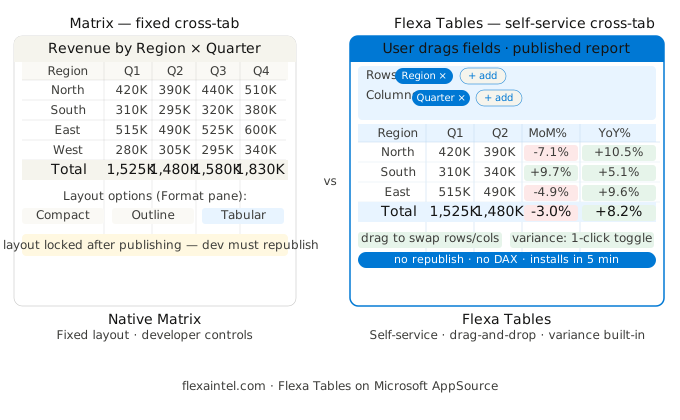
Once a Power BI report is published to Power BI Service, the Matrix layout is fixed. End-users cannot drag fields, swap rows and columns, or restructure the table. Every layout change requires going back to Power BI Desktop, editing, and republishing.
This is the core difference from Excel pivot tables. In Excel, the pivot table is an exploration tool — users drag, rearrange, and restructure on the fly. In Power BI, the Matrix is a presentation tool: polished, fixed, and developer-controlled.
In practice this creates a predictable support cycle: Finance asks to swap rows and columns, add a new dimension, or see the same data from a different angle. Each request goes back to the developer queue, back to Desktop, back to republish. For a full breakdown of this limitation, see Power BI Matrix vs Table: When to Use Each.
Method 3: Self-Service Cross-Tab With Flexa Tables
For cross-tab reports where end-users need to restructure the layout themselves — swapping rows and columns, adding new fields, changing the view for different stakeholders — Flexa Tables (Microsoft AppSource) adds true pivot table behavior inside Power BI Service.
- Finance users drag any field to rows or columns in the published report — no Desktop, no republish
- Different stakeholders can configure the same report differently without multiple report versions
- MoM, YoY, DoD variance columns available as one-click toggles — no DAX measures needed
- Installs from AppSource in under 5 minutes, works with your existing data model
For the complete pivot table feature overview, see Power BI Pivot Table: Add Excel-Style Pivoting Without DAX.
Which Method to Use
| Your situation | Best method |
|---|---|
| Fixed cross-tab, developer manages layout | Method 1 — Matrix visual |
| Source has wide format (months as columns) | Method 2 — Unpivot + Matrix |
| P&L or management report, fixed Finance template | Method 1 — Matrix (Tabular layout) |
| Users need to swap rows/columns themselves | Method 3 — Flexa Tables |
| Replace Excel pivot table inside Power BI | Method 3 — Flexa Tables |
| Cross-tab with built-in MoM/YoY variance | Method 3 — Flexa Tables |
Add Excel-Style Cross-Tab Flexibility to Power BI
Flexa Tables installs from AppSource in under 5 minutes. Free trial, no credit card required.
Get Free Trial on AppSource →Frequently Asked Questions
How do I create a cross-tab report in Power BI?
Use the Matrix visual. Drag a dimension to Rows (e.g. Department), another dimension to Columns (e.g. Month), and a measure to Values (e.g. Total Sales). The Matrix automatically aggregates values at each row x column intersection and adds subtotals. For cross-tabs where users need to restructure the layout after publishing, use Flexa Tables from AppSource.
What is the difference between a cross-tab and a pivot table in Power BI?
In Power BI terminology, cross-tab and pivot table refer to the same concept: a table that summarizes data at the intersection of two dimensions. The Matrix visual is Power BI's native cross-tab tool. The key distinction from Excel pivot tables is that Power BI Matrix layouts are fixed after publishing, whereas Excel pivot tables allow end-user restructuring at any time.
Can users restructure a cross-tab report in Power BI Service without developer help?
Not with the native Matrix visual — the layout is fixed at design time. Any structural change requires the developer to edit in Desktop and republish. Flexa Tables removes this constraint by enabling drag-and-drop field control directly in Power BI Service.
What are the Matrix layout options in Power BI?
Power BI offers three Matrix layout options (available from May 2024 update): Compact (hierarchy indented in one column, default), Outline (each hierarchy level in a separate column), and Tabular (flat table with one column per level, closest to Excel pivot table appearance). Set the layout under Format pane → Row headers → Layout.
How do I add conditional formatting to a Power BI cross-tab?
In the Matrix visual, select the measure in the Values bucket → Format pane → Conditional formatting → Background color or Font color. Use Rules-based formatting to apply green for positive values and red for negative. For variance columns, set the rule to apply to "Formatted values" to color based on the actual number.
Related Reading
→ Power BI Pivot Table: Add Excel-Style Pivoting Without DAX
→ Power BI Matrix vs Table: When to Use Each
→ Power BI Rows to Columns: The Complete Pivot & Unpivot Guide
Flexa Intel Team
Power BI Custom Visuals · flexaintel.com
We build Microsoft-certified Power BI visuals that close the gap between what Power BI does natively and what analysts and finance teams actually need. Flexa Tables is available on Microsoft AppSource.


