
Flexa Tables: Transforming Data into Clear Insights
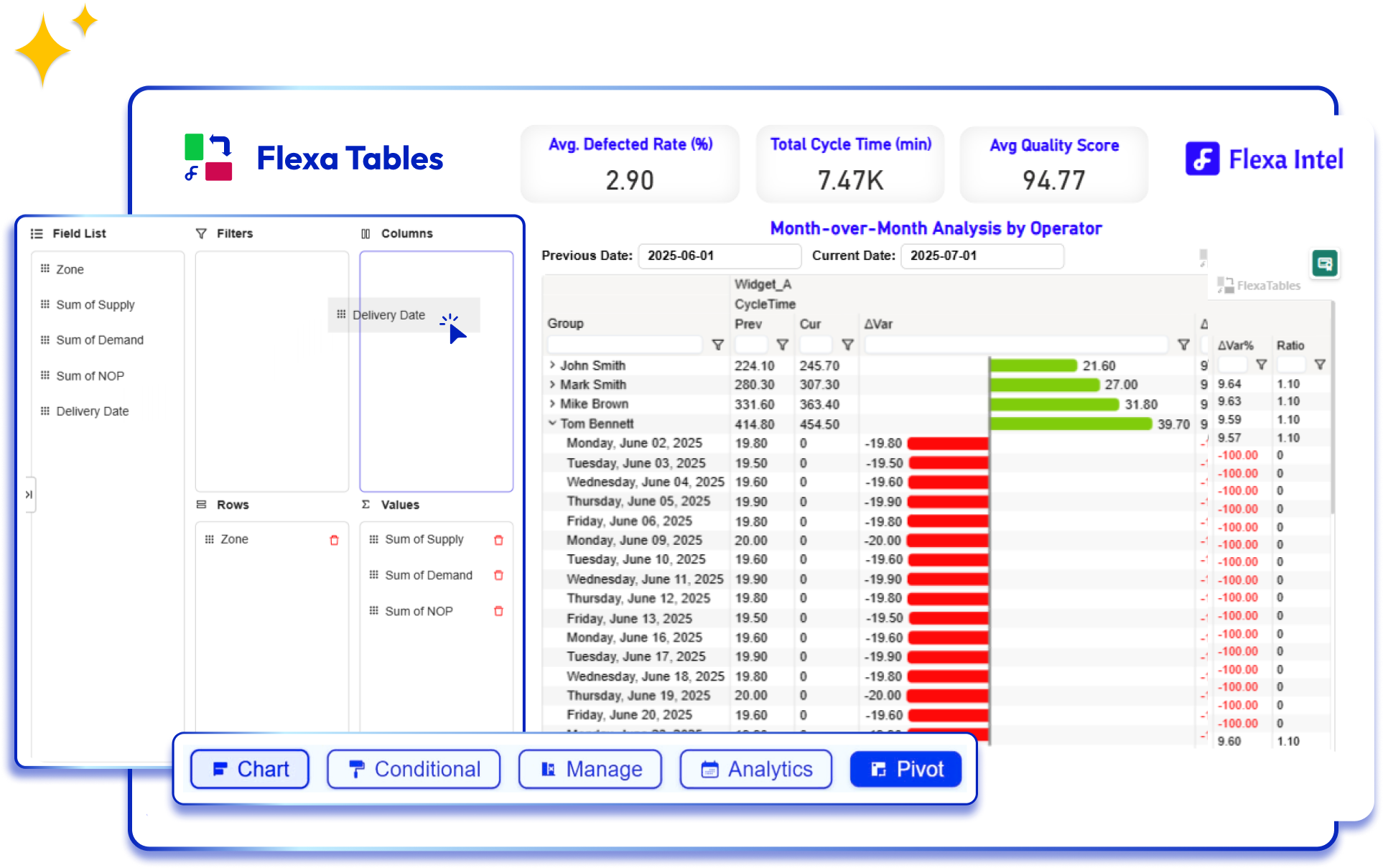
In the era of big data, where information floods every corner of our business operations, the real challenge isn't collecting data, it's making sense of it. Raw numbers buried in spreadsheets or static reports often lead to confusion, delays, and missed opportunities. Enter Flexa Tables, a revolutionary Power BI visual from FlexaIntel that turns complex datasets into dynamic, interactive tables capable of delivering crystal clear insights at a glance.Whether you're a sales manager tracking quarterly performance, a finance analyst spotting variances in budgets, or a marketing lead analyzing customer trends, Flexa Tables empowers you to pivot, filter, and visualize data like never before. In this in depth blog post, we'll explore what Flexa Tables is, why it matters, and how it can supercharge your data analysis workflow. We'll dive into practical examples, step by step implementation, and real world case studies to show you exactly how Flexa Tables transforms overwhelming data into actionable intelligence.By the end of this read, you'll be equipped to integrate Flexa Tables into your Power BI reports and unlock self service analytics for your team. Let's turn the tide on data chaos one pivot at a time.
Table of Contents
- The Data Dilemma: Why Traditional Tables Fall Short
- Introducing Flexa Tables: Your Gateway to Dynamic Insights
- Key Features That Set Flexa Tables Apart
- How Flexa Tables Integrates Seamlessly with Power BI
- Step by Step Guide: Building Your First Flexa Table
- Real World Applications: From Sales to Finance
- Case Study: How FlexaMart Boosted Efficiency by 40%
- Best Practices for Maximizing Flexa Tables
- Common Challenges and How to Overcome Them
- The Future of Data Visualization with Flexa Tables
- Conclusion: Empower Your Team with Flexa Tables Today
- Get Started: Resources and Next Steps
1. The Data Dilemma: Why Traditional Tables Fall ShortImagine this:
It's Monday morning, and your team is knee deep in a quarterly review. You've got a massive Excel export from your CRM, but flipping through tabs and manually calculating variances takes hours. Static tables in Power BI? They're better, but still rigid limited columns, no easy pivots, and forget about quick time based comparisons. Analysts export data, file tickets with developers, and wait days for custom views. Meanwhile, decisions stall, and opportunities slip away.This is the data dilemma plaguing modern businesses. According to a 2025 Gartner report, 68% of organizations cite "poor data visibility" as a top barrier to effective analytics. Traditional tools force users into a one size fits all approach, where:
- Limited Flexibility: Standard Power BI tables show only what you predefine no ad hoc pivots or custom groupings.
- Time Consuming Calculations: Month over month (MoM) or year over year (YoY) variances? That's manual DAX coding or Excel detours.
- Static Visuals: No embedded charts or conditional formatting to highlight trends dynamically.
- Collaboration Bottlenecks: Non technical users rely on IT for every tweak, slowing self service analytics.
The result? Frustrated teams, delayed insights, and data that feels more like a burden than a boon. But what if your tables could think like Excel while scaling like Power BI? That's where Flexa Tables steps in.
2. Introducing Flexa Tables:
Your Gateway to Dynamic InsightsFlexa Tables is more than a visual it's a game changer built by FlexaIntel to bridge the gap between rigid reporting and intuitive analysis. Designed as a native Power BI custom visual, Flexa Tables brings Excel like power directly into your dashboards, allowing users to drag, drop, and discover insights without leaving the platform.At its core, Flexa Tables transforms static data grids into interactive pivot tables that adapt to your queries in real time. Load your dataset, select fields, and watch as it generates custom views, variance calculations, and even embedded charts all with minimal setup. Whether you're dealing with sales metrics, inventory levels, or customer demographics, Flexa Tables makes data exploration feel effortless.What makes it truly transformative? It's not just about speed; it's about clarity. By embedding analytics directly into the table, Flexa Tables surfaces hidden patterns sparklines for trends, color coded variances for outliers, and smart filters for drilling down. In a world where 80% of data professionals spend their time wrangling data (per a 2025 Forrester study), Flexa Tables reclaims that time for what matters: deriving insights that drive business growth.
3. Key Features That Set Flexa Tables ApartFlexa Tables isn't a one trick pony. Packed with enterprise grade features, it addresses the pain points of traditional tools head on. Here's a breakdown of what makes it stand out:
3.1. Dynamic Pivoting and Grouping
- Drag any field (e.g., "Region," "Product," "Month") to rows, columns, or values.
- Instantly pivot data without writing queries perfect for ad hoc analysis.
- Supports hierarchical grouping, like drilling from Category to Subcategory.
3.2. Built In Variance Calculations
- Automate MoM, QoQ (Quarter over Quarter), and YoY comparisons with one click.
- Visualize deltas with conditional formatting: Green for gains, red for losses.
- No more custom DAX measures save weeks of development time.
3.3. Embedded Visuals and Sparklines
- Integrate mini charts (bar, line, pie) directly into cells for at a glance trends.
- Sparklines show micro trends over time, turning rows of numbers into stories.
- Custom formulas for advanced users: Calculate averages, percentages, or even custom KPIs.
3.4. Smart Filtering and Search
- Intuitive slicers and search bars filter millions of rows in seconds.
- Cross table interactions: Select in one Flexa Table, and linked visuals update.
- Export ready: One click to Excel or PDF for stakeholder reports.
3.5. Performance Optimization
- Handles datasets up to 10 million rows without lagging.
- Server side processing for cloud deployments, ensuring scalability.
These features aren't just bells and whistles they're built to democratize data, letting business users bypass IT queues and focus on strategy.
4. How Flexa Tables Integrates Seamlessly with Power BIFlexa Tables shines brightest within the Power BI ecosystem. As a certified custom visual from the Microsoft AppSource marketplace, it installs in seconds and works with any dataset Excel, SQL, Azure, or beyond.Key integration perks:
- Native Compatibility: Uses Power BI's data model, respecting relationships and measures.
- Theming Alignment: Matches your report's colors, fonts, and themes automatically.
- Mobile Responsive: Renders perfectly on Power BI Mobile apps.
- Security First: Inherits Power BI's row level security (RLS) for compliant sharing.
Installation is a breeze: Search "Flexa Tables" in Power BI Desktop's Visuals pane, download from AppSource, and drag it onto your canvas. From there, it's plug and play select fields from your Fields pane, and let the magic unfold.
5. Step by Step Guide: Building Your First Flexa TableReady to roll up your sleeves? Let's build a sample Flexa Table using a fictional sales dataset for "FlexaMart," our go to retail example. Assume you have a Power BI report with tables for Sales (Date, Product, Region, Revenue, Units), Products (ID, Name, Category), and Calendar (Date, Month, Year).
5.1. Install Flexa Tables
- Open Power BI Desktop.
- In the Visualizations pane, click the three dots (...) > Get more visuals.
- Search "Flexa Tables" and import from AppSource.
- Drag the Flexa Tables icon onto your report canvas.
5.2. Connect Your Data
- In the Fields pane, drag key fields to Flexa Tables' wells:
- Rows: Product[Name], Region[Name].
- Columns: Calendar[Month].
- Values: Sales[Revenue], Sales[Units].
- The table populates instantly, pivot by dragging Region to Columns for a cross tab view.
5.3. Add Variance Insights
- In the Flexa Tables format pane (right click > Format), toggle Variance Analysis.
- Select MoM under Time Comparison watch deltas appear in a new column, color coded for positive/negative changes.
- Enable Sparklines: Choose "Line" type on the Revenue field to show monthly trends per product.
5.4. Enhance with Filters and Visuals
- Add a slicer for Category (Insert > Slicer).
- In Flexa Tables, enable Embedded Charts: Set Revenue to a mini bar chart per cell.
- Test interactivity: Click a region linked visuals filter accordingly.
5.5. Publish and Share
- Save and publish to Power BI Service.
- Pin the table to a dashboard for executive overviews.
In under 10 minutes, you've created a dynamic table that reveals top performing products by region and month. Scale this to your data, and the insights will flow.(Pro Tip: For advanced users, dive into the formula bar for custom expressions like = [Revenue] * 1.1 for projected sales.)
6. Real World Applications: From Sales to FinanceFlexa Tables' versatility spans industries. Here's how it shines in key areas:
6.1. Sales and Marketing
- Track pipeline velocity with pivoted funnels (Stage x Rep x Month).
- Spot underperforming regions via YoY variances, with sparklines for trend spotting.
- Example: A marketing team uses it to correlate campaign spend with conversion rates, identifying ROI black holes.
6.2. Finance and Budgeting
- Automate budget vs. actuals tables with delta highlighting.
- Pivot P&L statements by department and quarter for quick audits.
- Example: CFOs forecast cash flow by embedding growth projections in cells.
6.3. Supply Chain and Inventory
- Monitor stock levels with MoM turnover calculations.
- Group by supplier and product for bottleneck detection.
- Example: Logistics firms pivot delays by route and carrier, reducing downtime.
6.4. HR and Operations
- Analyze employee metrics (Tenure x Department x Performance) for talent insights.
- Track project KPIs with embedded Gantt style timelines.
In each case, Flexa Tables cuts analysis time by 50 70%, per user feedback on AppSource.
7. Case Study: How FlexaMart Boosted Efficiency by 40%At FlexaMart, a mid sized e commerce retailer, data silos were killing agility. Analysts spent 15 hours weekly exporting sales data to Excel for pivot tables, delaying inventory decisions.Enter Flexa Tables:
The team imported it into their Power BI sales dashboard. Within days:
- Pivot Power: Regional managers created custom views for product performance, spotting a 20% sales dip in Northeast Q3.
- Variance Magic: Automated QoQ calculations revealed supplier pricing issues, saving $50K in overpayments.
- Insight Acceleration: Sparklines highlighted seasonal trends, optimizing stock for Black Friday boosting revenue 15%.
Result? Analysis time dropped 40%, from days to hours. "Flexa Tables turned our data graveyard into a insight goldmine," says FlexaMart's Analytics Lead. This isn't isolated similar wins at Fortune 500 firms underscore its impact.
8. Best Practices for Maximizing Flexa TablesTo get the most from Flexa Tables:
- Start Simple: Begin with 5 7 fields; add complexity iteratively.
- Leverage Relationships: Ensure your Power BI model has strong table links for accurate pivots.
- Customize for Audience: Use conditional colors for execs (e.g., red for variances >10%); sparklines for analysts.
- Performance Tune: Limit rows with top N filters for large datasets.
- Train Your Team: Host a 30 min workshop self service adoption skyrockets.
- Iterate with Feedback: Embed user ratings in reports to refine views.
Remember: The goal is clarity, not clutter. A well tuned Flexa Table tells a story without overwhelming.
9. Common Challenges and How to Overcome ThemNo tool is perfect. Here's how to sidestep Flexa Tables' hurdles:
- Learning Curve: Solution: Use the built in tooltips and FlexaIntel's free tutorials.
- Large Datasets: Solution: Aggregate in Power Query first; Flexa handles the rest.
- Customization Limits: Solution: Pair with DAX for ultra specific formulas.
- Sharing Issues: Solution: Publish to Power BI Service workspaces for secure access.
With these tweaks, challenges become stepping stones.
10. The Future of Data Visualization with Flexa TablesAs AI evolves, so does Flexa Tables. Upcoming updates (Q4 2025) include:
- AI Driven Suggestions: Auto recommend pivots based on data patterns.
- Natural Language Queries: Type "Show MoM sales by region" for instant tables.
- Enhanced Integrations: Deeper ties with Fabric and Copilot for predictive analytics.
FlexaIntel is committed to making data visualization intuitive, ensuring Flexa Tables remains at the forefront of self service BI.
11. Conclusion:
Empower Your Team with Flexa Tables TodayData doesn't have to be daunting. Flexa Tables transforms mundane tables into beacons of insight, empowering users to pivot from questions to answers in moments. From dynamic pivots to variance magic, it's the tool that unlocks your data's true potential faster decisions, smarter strategies, and a competitive edge.Don't let static reports hold you back. Download Flexa Tables from AppSource today and start your transformation. Your data is ready to shine what are you waiting for?
If your team is specifically looking to replace Excel pivot tables with a Power BI-native solution, see our complete guide: Power BI Pivot Table: Add Excel-Style Pivoting Without DAX
12. Get Started:
Resources and Next Steps
- Download Flexa Tables: Microsoft AppSource
- Free Tutorial Series: FlexaIntel
- Sample Datasets: Grab our FlexaMart sales file here.
- Contact Us: Ready for custom implementations? Email support@flexaintel.com (mailto:support@flexaintel.com).


