
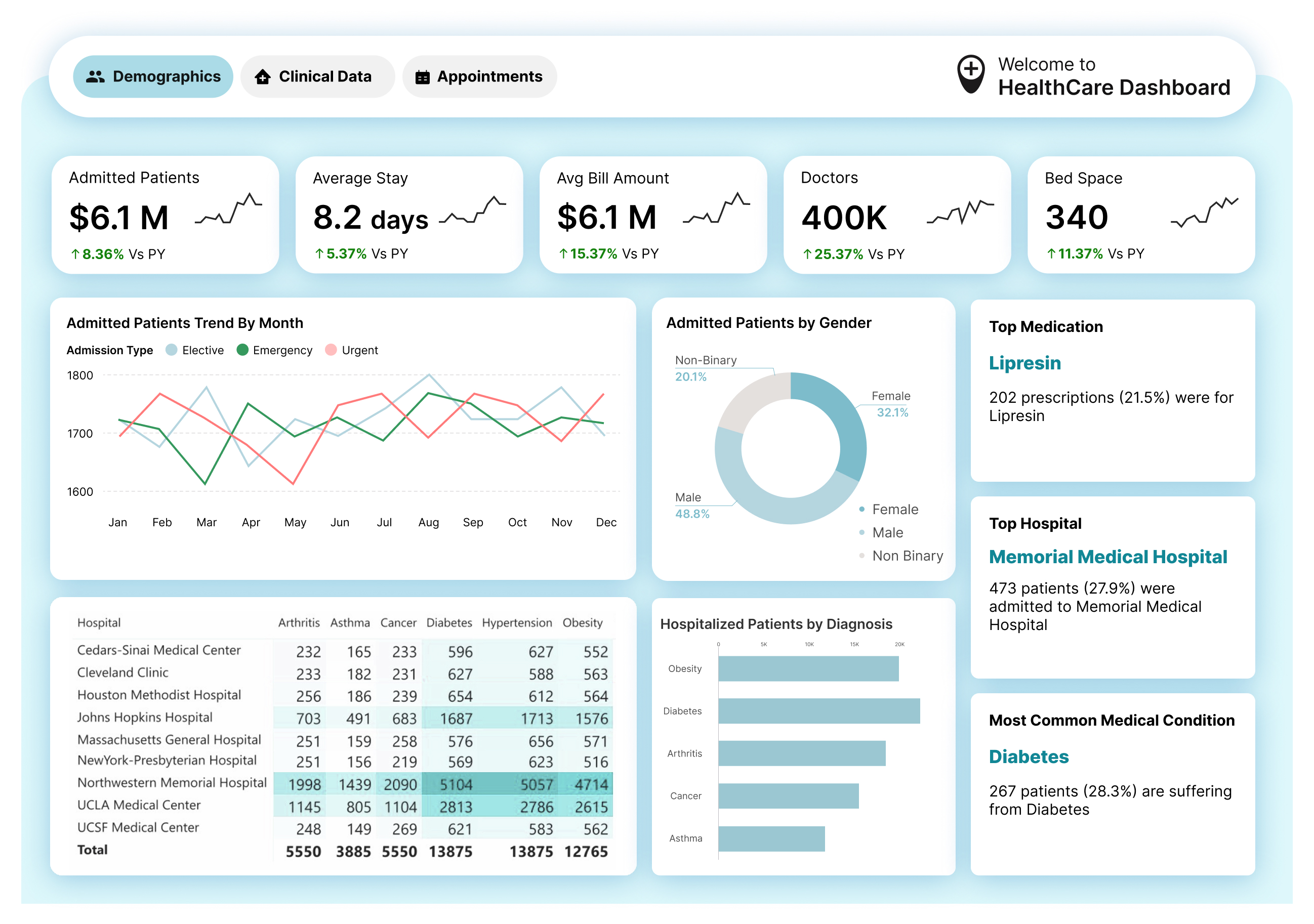
When Working with Power BI to Visualize Your Data in Pivot Format, Which Visual Do You Use?
Power BI is a powerful tool for transforming raw data into meaningful insights, especially when you need to analyze data in a pivot format, similar to Excel PivotTables but with enhanced interactivity and scalability. A pivot format allows you to summarize, group, and aggregate data dynamically, making it ideal for identifying trends, patterns, and outliers. In this blog post, we’ll explore two key Power BI visuals for pivot-style data visualization: the Matrix visual (a native Power BI visual) and Flexa Tables (a custom visual by Flexa Intel). We’ll evaluate their features, pros, and cons, using a real-world dataset, a sales dataset of Samsung Desktop sales across various regions, states, and cities in 2020 and 2021. By the end, you’ll have a clear understanding of which visual to choose for your pivot-style reporting needs.
Understanding the Dataset
The dataset we’re working with contains sales data for Samsung Desktop products across multiple regions (South and North), states (Texas and Florida), and cities (Houston, Dallas, Austin, Miami, Tampa, and Orlando) in 2020 and 2021. Key columns include:
- Sales Date: Dates ranging from January 1, 2020, to January 31, 2021 (e.g., 2020-01-01 to 2021-01-31).
- Region, State, and City: Geographical hierarchy (e.g., South, Texas, Houston).
- StoreNumber: Unique store identifiers (e.g., 1036, 1171).
- Product Category and Brand: All entries are Electronics, Samsung.
- Product: Desktop (the only product in this dataset).
- PnL: Profit and Loss values for each transaction (e.g., $31,795 for Store 1036 in Houston on January 1, 2020).
- Month and Year: Derived fields (e.g., Month 2020-01-01 for January 2020, Year 2020-01-01 for 2020).

Our goal is to visualize this data in a pivot format to analyze sales performance by region, city, and month, with the ability to drill down into store-level details. Let’s see how the Matrix visual and Flexa Tables handle this task.
Understanding Pivot Format in Power BI
A pivot format in Power BI allows you to group data into rows and columns, aggregate values (e.g., sum of PnL), and drill down into hierarchies. For our sales dataset, we might want to:
- Group by Region and City in rows.
- Pivot by Month (e.g., January 2020, March 2020, January 2021) in columns.
- Aggregate the PnL (sum) as values.
- Drill down to see details by StoreNumber.
Power BI offers two main visuals for this purpose: the Matrix visual and Flexa Tables. Let’s explore each.
Option 1: The Matrix Visual
The Matrix visual is a native Power BI visual designed for pivot-style data presentation. It’s similar to an Excel PivotTable, allowing you to group data into rows and columns, aggregate values, and drill down into hierarchies.
How to Use the Matrix Visual
- Add the Visual: In Power BI Desktop, go to the "Report" view, select the Matrix visual from the Visualizations pane, and drag it onto your canvas.
- Configure the Fields:
- Rows: Add "Region" and "City" to create a hierarchy (e.g., South → Texas → Houston).
- Columns: Add "Month" to pivot by month (e.g., 2020-01-01, 2020-03-01, 2021-01-01).
- Values: Add "PnL" and set the aggregation to Sum.

- Customize:
- Enable drill-down to explore hierarchies (e.g., expand to see StoreNumber under each City).
- Apply conditional formatting to highlight high PnL values (e.g., cells with PnL > $1,000,000 in green).
- Toggle subtotals and grand totals in the Format pane for a summarized view.

Example with the Sales Dataset
Using the Matrix visual, we can create a table to analyze Samsung Desktop sales performance:
- Rows: Region → City.
- Columns: Month (January 2020, March 2020, January 2021).
- Values: Sum of PnL.
Sample Output (calculated from the dataset):

Note: The dataset shows sales for January 2020 to May 2020. The Matrix visual provides a summarized view, with subtotals per region and city. We can drill down to see PnL by StoreNumber under each city, for example, Store 1001 in Houston had a PnL of $740,154 in January 2020.
Pros of the Matrix Visual
- Ease of Use: Native to Power BI, requiring no additional setup.
- Performance: Optimized for large datasets, handling the 500+ rows in our sales dataset efficiently.
- Integration: Seamlessly integrates with other Power BI features, such as cross-filtering (e.g., clicking a city filters a bar chart showing PnL trends) and drillthrough to detailed report pages.
- Basic Pivot Functionality: Supports row and column grouping, drill-down, and aggregations (e.g., sum, average), making it ideal for straightforward reporting.
- Accessibility: Adheres to Power BI’s accessibility standards (e.g., screen reader support, color contrast).
Cons of the Matrix Visual
- Limited Flexibility: Lacks advanced Excel-like features such as inline editing or dynamic pivoting beyond predefined hierarchies.
- Formatting Constraints: Offers basic formatting (e.g., conditional formatting, font adjustments) but cannot merge cells or provide highly customized layouts.
- Static Experience: While it supports drill-down and cross-filtering, the user experience is relatively static, limiting ad-hoc exploration (e.g., you can’t dynamically switch to grouping by StoreNumber without redesigning the visual).
Option 2: Flexa Tables
Flexa Tables, a custom visual by Flexa Intel, is designed to provide a more flexible, Excel-like experience in Power BI. It’s particularly suited for complex reports where users need advanced interactivity and dynamic pivoting capabilities.
How to Use Flexa Tables
- Install the Visual: In Power BI, go to the Visualizations pane, click the three dots ("Get more visuals"), search for "Flexa Tables," and add it to your report.

- Configure the Fields:
- Add "Region" and "City" to Rows, "Month" to Columns, and "PnL" to Values (similar to the Matrix visual).
- Flexa Tables allow dynamic field manipulation, such as drag-and-drop reordering.

- Leverage Advanced Features:
- Use inline editing to adjust PnL values for what-if analysis.
- Dynamically pivot data (e.g., switch to grouping by StoreNumber or Region).
- Apply advanced filtering and conditional formatting


Example with the Sales Dataset
Using Flexa Tables, we can create a more interactive version of the sales performance table:
- Initial Setup: Same as the Matrix visual, Region and City in Rows, Month in Columns, Sum of PnL in Values.
- Dynamic Adjustments:
- Drag and drop to pivot by StoreNumber instead of Month, showing PnL per store across cities.
- Apply an inline filter to show only cities with PnL > $20M in a specific StoreNumber.
Sample Output (after pivoting by StoreNumber for January 2020):

Note: This view shows PnL by store and city for January 2020, with the ability to dynamically pivot and filter values. For example, a sales manager could filter to show only stores with PnL > $20M revealing high-performing locations.
Pros of Flexa Tables
- Excel-Like Flexibility: Offers inline editing, dynamic pivoting, and drag-and-drop reordering, mimicking Excel’s PivotTable functionality.
- Advanced Interactivity: Users can apply inline filters, sort dynamically, and explore data in multiple ways (e.g., pivot by StoreNumber, then by Region).
- Dynamic Analysis: Supports ad-hoc pivoting and custom calculations, ideal for exploratory analysis (e.g., a sales manager analyzing city performance across stores).
- Enhanced Formatting: Provides advanced conditional formatting and custom styles.
- User-Driven Adjustments: Empowers end-users to manipulate the table directly, reducing dependency on developers for report modifications.
Cons of Flexa Tables
- Setup Overhead: Requires installation from the Power BI marketplace, adding an extra step.
- Performance Concerns: As a custom visual, it may have performance overhead with large datasets (e.g., our 1M+ rows could slow down if not optimized).
- Learning Curve: Advanced features like inline editing and dynamic pivoting may require training for users unfamiliar with Excel-like functionality.
Comparison Table: Matrix Visual vs. Flexa Tables
| Feature | Matrix Visual | Flexa Tables |
| Ease of Access | Native, no installation required. | Requires installation from the Power BI marketplace. |
| Excel-Like Functionality | Limited; basic pivot features (rows, columns, drill-down). | Highly Excel-like, with inline editing, dynamic pivoting, and drag-and-drop. |
| Data Aggregation | Standard aggregations (sum, average, count). | Advanced aggregations, including custom calculations and dynamic measures. |
| Formatting Options | Basic conditional formatting, font adjustments, subtotals. | Advanced formatting, dynamic cell highlighting, custom styles. |
| Interactivity | Cross-filtering, drill-down, drillthrough. | Inline filtering, sorting, drag-and-drop reordering, what-if analysis. |
| Pivot Functionality | Basic row/column grouping, predefined hierarchies. | Dynamic pivoting, ad-hoc groupings, user-driven exploration. |
| Performance | Optimized for large datasets as a native visual. | Potential overhead as a custom visual; depends on dataset size. |
| Customization | Limited to Power BI’s built-in options. | Highly customizable, with dynamic layouts and user-driven adjustments. |
| Accessibility | Adheres to Power BI’s accessibility standards. | Depends on Flexa Intel’s implementation; may vary. |
Use Case: Sales Dataset Scenario
Let’s apply both visuals to our sales dataset to analyze Samsung Desktop sales performance across regions, cities, and months.
- Matrix Visual:
- Setup: Region and City in Rows, Month in Columns, Sum of PnL in Values.
- Use Case: Ideal for a static report where the sales manager needs a summarized view of sales performance by city and month, with basic interactivity (e.g., drill-down to see StoreNumber details, cross-filter with a line chart showing PnL trends over time).
- Example Insight: Houston’s sales in January 2020 totaled $1,981,346, with Store 1036 contributing $31,795.
- Limitation: The manager cannot dynamically pivot to group by StoreNumber or edit PnL values for scenario analysis without redesigning the visual.
- Flexa Tables:
- Setup: Start with the same configuration (Region and City in Rows, Month in Columns, Sum of PnL in Values), but leverage dynamic features.
- Use Case: Perfect for a sales manager who needs to perform ad-hoc analysis, such as pivoting to see PnL by StoreNumber, filtering for high-performing cities, or simulating scenarios by editing values.
- Example Insight: After pivoting by StoreNumber, the manager sees that Store 1036 in Houston sold $31,795 in January 2020(Electronics, Samsung), while Store 1171 in Miami sold $30,345(Electronics, Samsung). They can filter to show only stores with PnL > $20M and adjust values to simulate a sales increase.
- Limitation: May require more setup and could face performance issues with larger datasets, depending on the implementation.
Which Visual Should You Use?
- Choose the Matrix Visual if:
- You need a quick, straightforward pivot-style report with minimal setup.
- Your report is static or semi-static, with predefined structures (e.g., summarizing sales performance by city and month).
- Performance and seamless integration with Power BI features (e.g., cross-filtering, drillthrough) are priorities.
- Your audience prefers a simple, familiar tabular layout without advanced interactivity.
- Choose Flexa Tables if:
- You’re working on a complex report requiring dynamic analysis and Excel-like flexibility (e.g., a sales dashboard where managers need to explore data in multiple ways).
- Your users are comfortable with Excel PivotTables and want features like inline editing, dynamic pivoting, and advanced filtering.
- You’re willing to invest time in setup and optimization to provide a more interactive experience for end-users.
See the full feature breakdown: Power BI Pivot Table: Add Excel-Style Pivoting Without DAX.
Conclusion
When visualizing data in a pivot format in Power BI, both the Matrix visual and Flexa Tables have their strengths and weaknesses. The Matrix visual is the best choice for simple, static pivot-style reporting, offering ease of use, performance, and seamless integration with Power BI’s ecosystem. It’s perfect for summarizing our sales dataset by region, city, and month, providing a clear, aggregated view of Samsung Desktop sales performance. On the other hand, Flexa Tables excels in complex scenarios where users need advanced interactivity, dynamic pivoting, and Excel-like functionality. It’s ideal for a sales manager who wants to explore the dataset in multiple ways, pivoting by StoreNumber, filtering for high-performing cities, and simulating scenarios.
For our sales dataset, the Matrix visual can provide a solid foundation for a static report, while Flexa Tables can empower managers to dive deeper and perform ad-hoc analysis. Ultimately, the choice depends on your report’s complexity, user needs, and performance requirements.
For a dedicated guide on adding true Excel-style pivot tables inside Power BI — including drag-and-drop after publishing and one-click variance analysis (DoD/MoM/YoY) without DAX — see: Power BI Pivot Table: Add Excel-Style Pivoting Without DAX.
For more details on the Flexa Tables visual, check out the official Microsoft Appsource here. To explore Flexa Tables, visit the Flexa Intel website at Flexa Intel for specific documentation and capabilities.


